BLC CRM: Overview
A guided tour of every major area in BLC CRM. If you are new to the app, start here. Each section answers "what is this for" and "where do I click" - not how it is built underneath.
Overview
BLC CRM is the practice management hub for your firm. You use it to keep track of people (contacts), the work you do for them (matters), the intake forms clients fill out, the time and money that turn into invoices, and the reports your partners want at the end of the month.
Everything lives behind one login. The sidebar on the left stays put as you move around. The top bar gives you global search, a light/dark toggle, and the logout button.
Dashboard
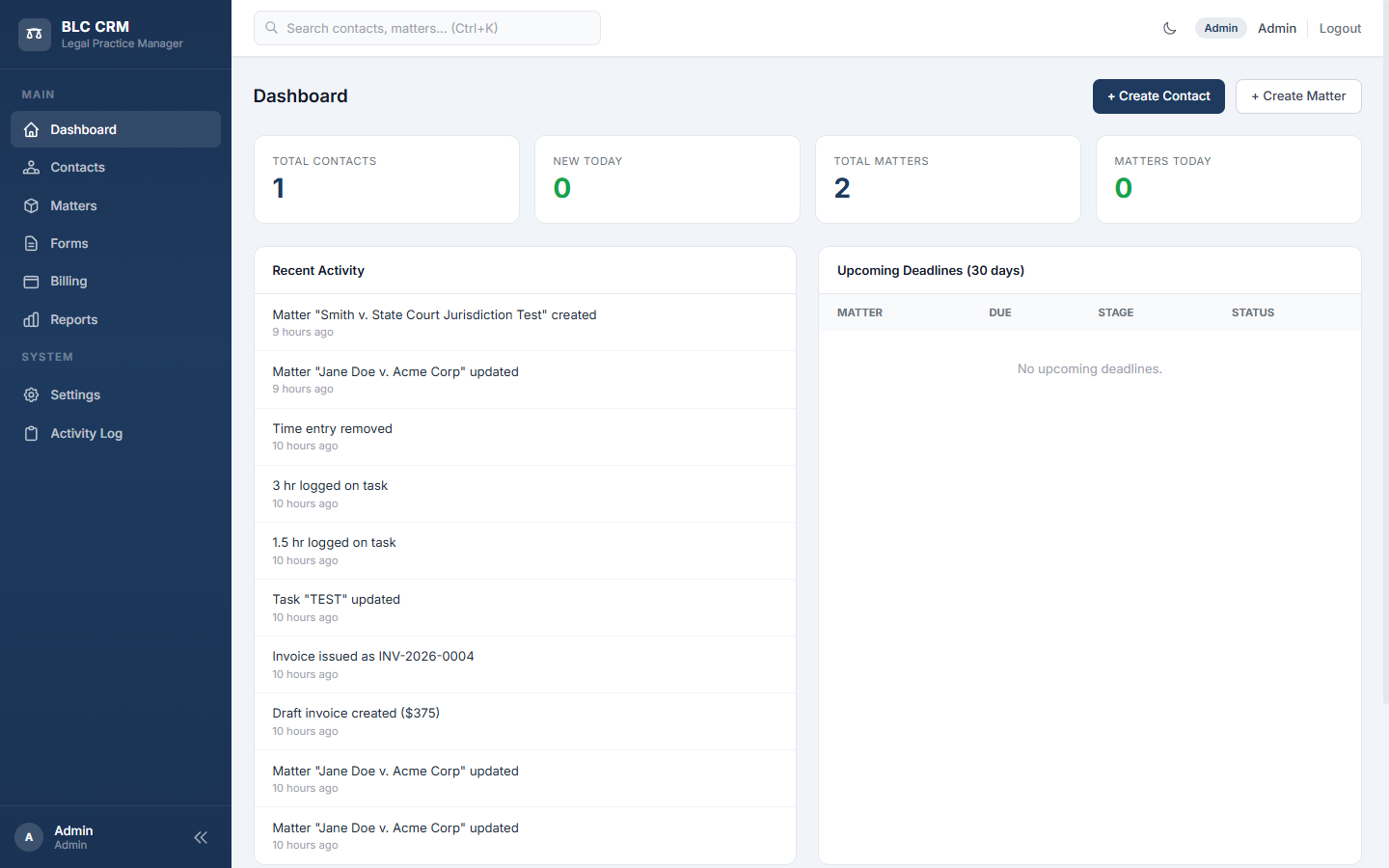
The Dashboard is the first page you land on after logging in. It is the pulse of your firm for today, and it is now personal to you - it opens with a time-aware greeting (good morning / afternoon / evening, by name) above a grid of widgets you can arrange to suit how you work.
The widgets each pull live firm data: Key Numbers (total and new-today contacts and matters), a mini month Calendar of your appointments and deadlines, My Active Matters, Upcoming Deadlines, a Billing Summary (outstanding, overdue, paid this month, drafts, and the funds held in trust), Recent Documents, Recent Messages, Recent Activity, and Assigned to Me. "New today" is counted in your firm's own time zone, so it always matches your clock.
A Shortcuts strip gives you one-click tiles: Add contact opens a small popup to add a person without leaving the dashboard (the usual duplicate check still applies); Add matter opens the new-matter form; Add invoice asks which matter and opens that matter's invoice draft (shown to people who may raise invoices); Matters shows how many matters the firm has and opens the list; and Timer is a real control. With no timer running it says Start timer and opens a small popup where you pick the matter and can type a note (one timer per person, the same rule as Billing's Start Timer). While a timer runs, the tile shows the live clock with Pause / Resume and a Stop button; Stop opens the same Stop & Save box the floating timer bar uses, so you can edit the note before the time is logged on the matter.


Click Customize (top right) to enter edit mode: drag the widgets to reorder them, use each widget's Hide/Show toggle to choose what you see, then Save. Your layout is remembered for your login only - a colleague's dashboard is unaffected. The left sidebar's Main group can be drag-reordered the same way, so your most-used areas sit where you want them.
Two buttons in the top right let you jump straight into creating a new contact or a new matter without clicking through the sidebar.
Contacts
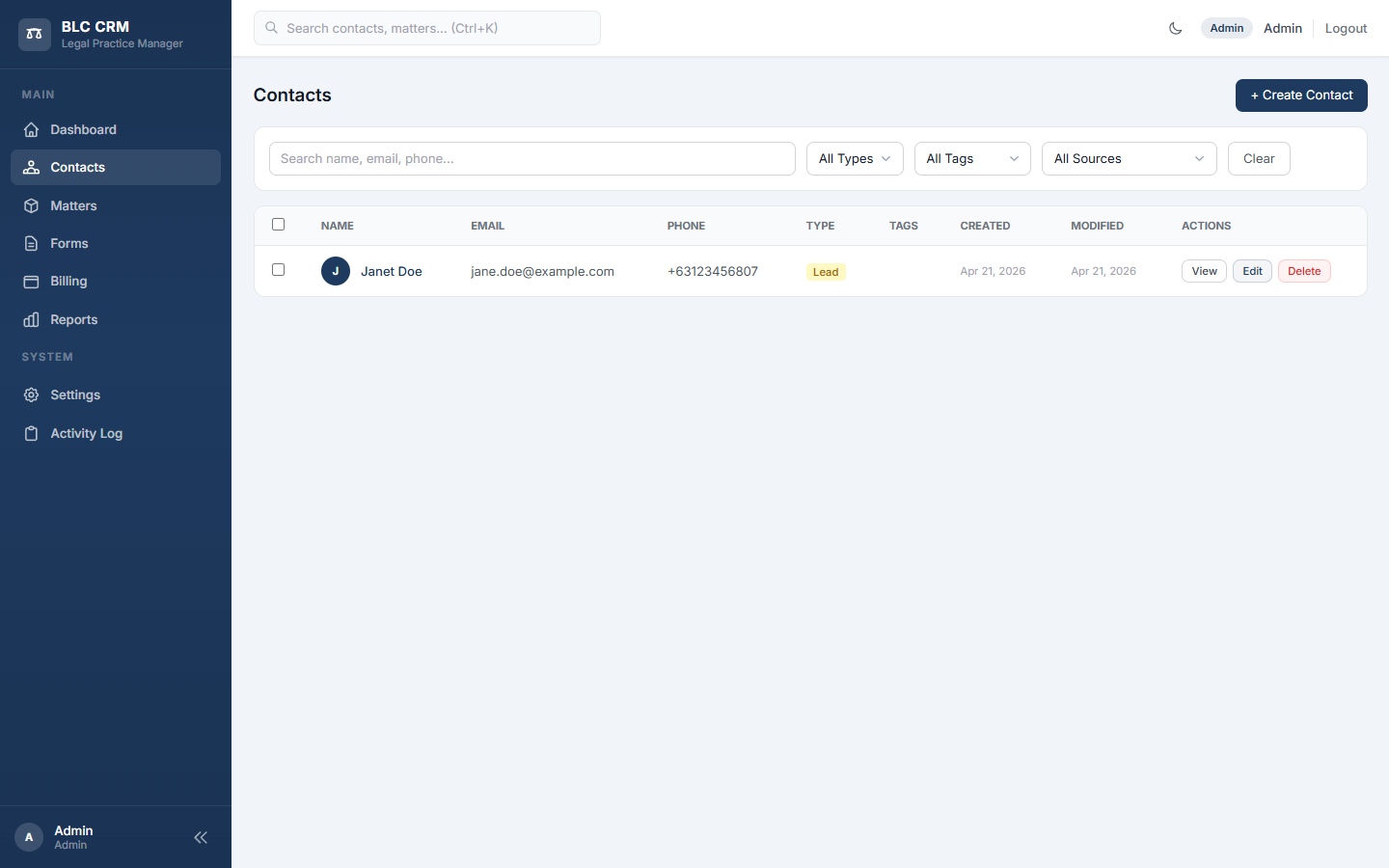
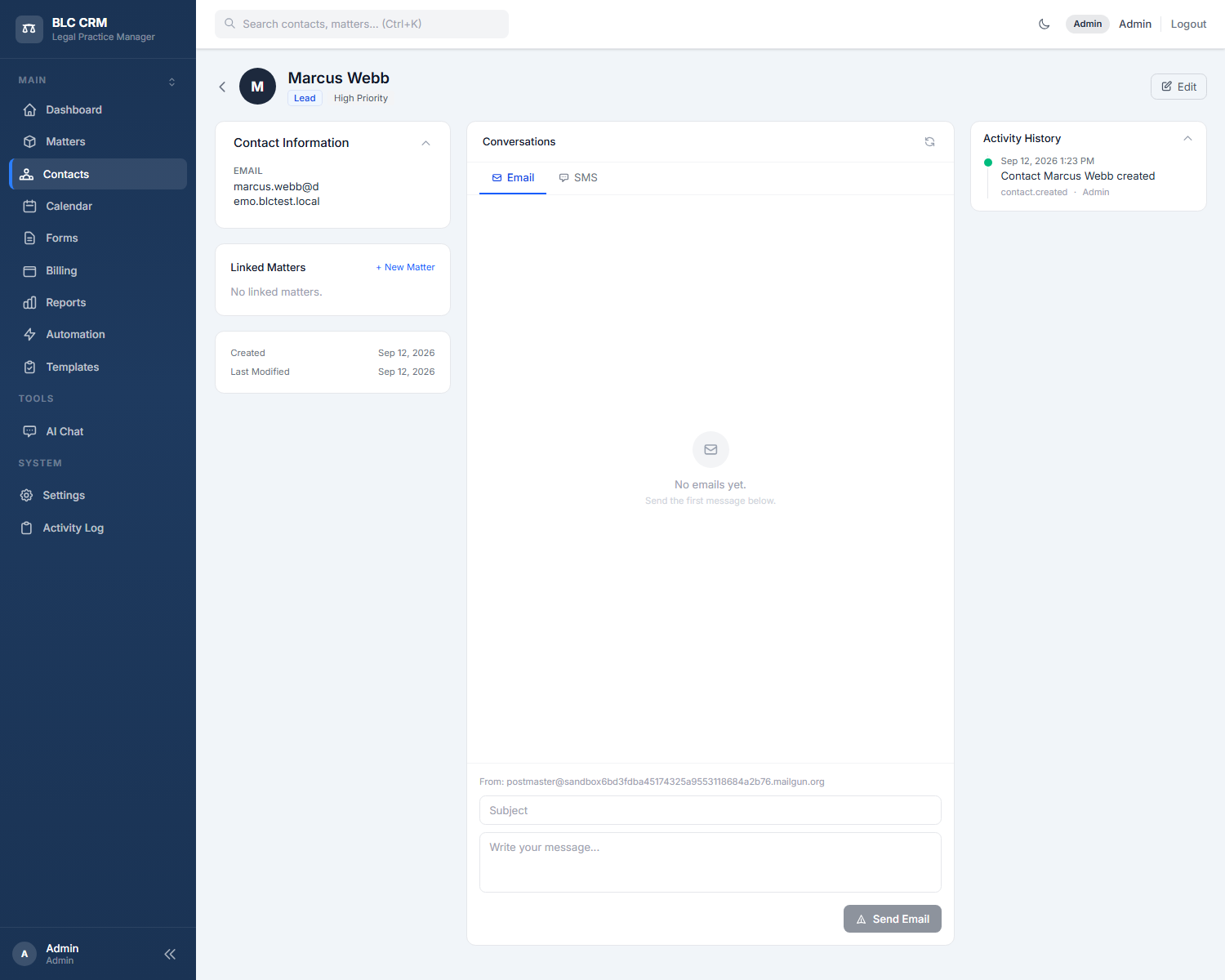
The Contacts area is your firm's address book. Every person your firm deals with - clients, leads, opposing counsel, witnesses, vendors - lives here.
You can search by name, email, or phone at the top. Three dropdown filters narrow the list by type (Client, Lead, Opposing Party, and so on), by tag, or by source (where they came from: a referral, a web form, an ad campaign). Each row shows the contact's name, contact details, type, tags, when they were added, and buttons to View, Edit, or Delete.
The + Create Contact button in the top right opens a form where you fill in the person's details, pick a type, attach tags, and optionally link them to a source.
Matters
A matter is a case or engagement: one piece of work you are doing for one client. The Matters area is where the real practice happens.
The list
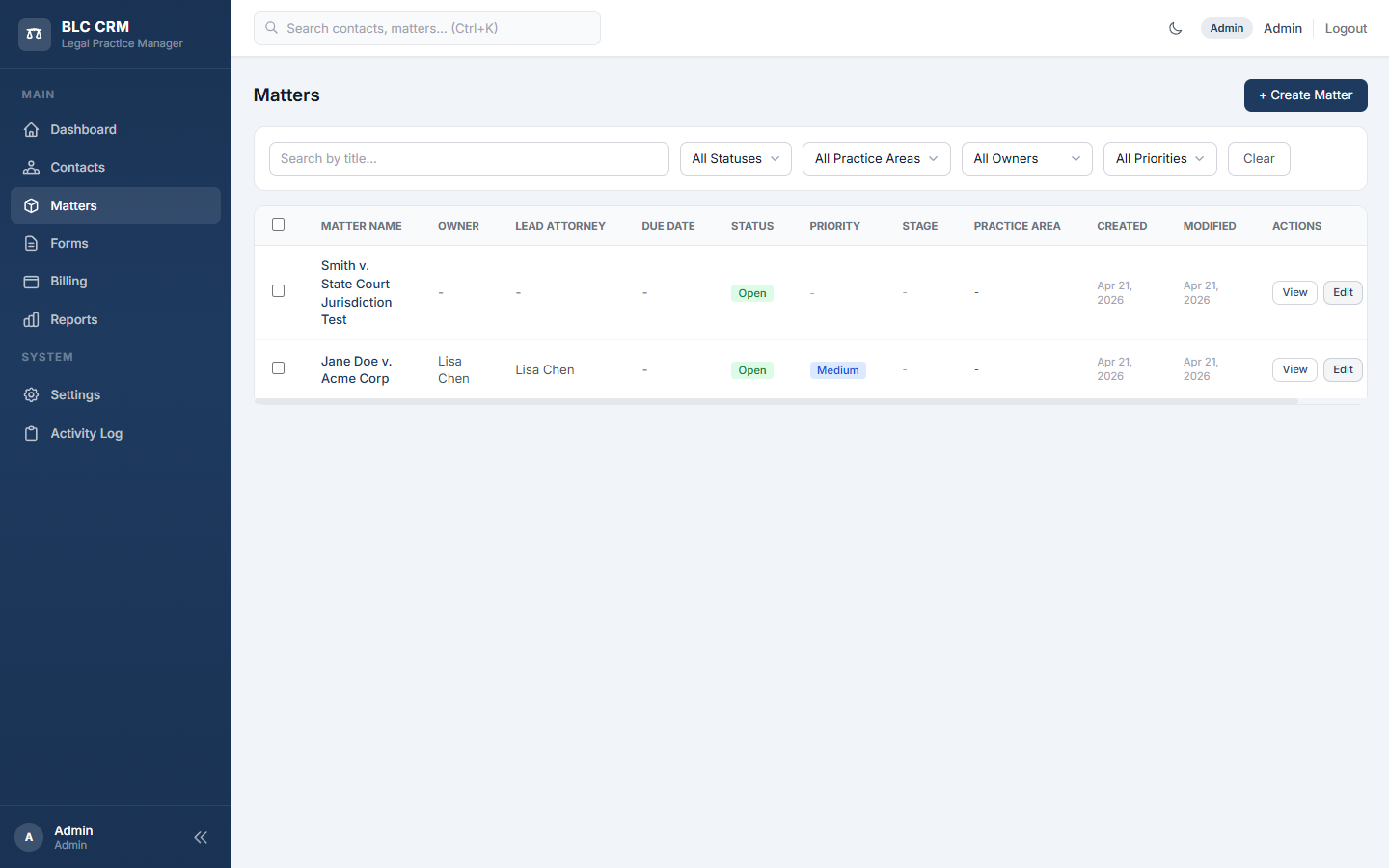
The Matters list shows every case with its owner, lead attorney, status, priority, stage, and practice area. You can filter by any of these, search by title, and open a matter by clicking its name or the View button.
Inside a matter
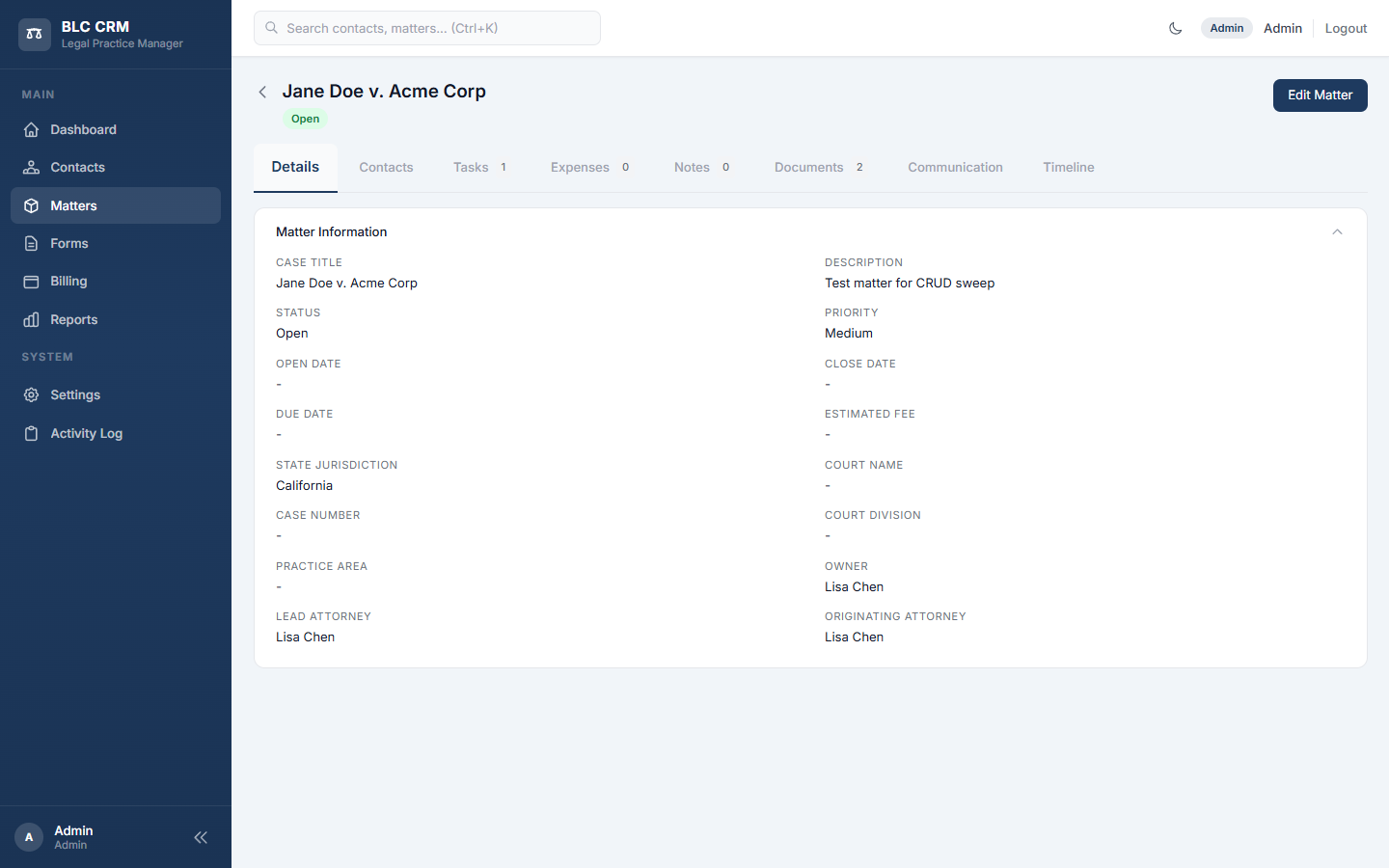
Open a matter and you get a tabbed workspace - everything about that case in one place:
- Details: The core information: case title, court, status, priority, dates, the owner, and the lead attorney.
- Contacts: The people tied to the case (client, opposing parties, witnesses, and so on).
- Tasks: To-do items assigned to your team, with due dates.
- Expenses: Out-of-pocket costs you have paid on the client's behalf.
- Notes: Free-form notes anyone on the team can add.
- Documents: Files you upload and organize into folders.
- Communication: Every email and text message tied to this matter, in a single thread.
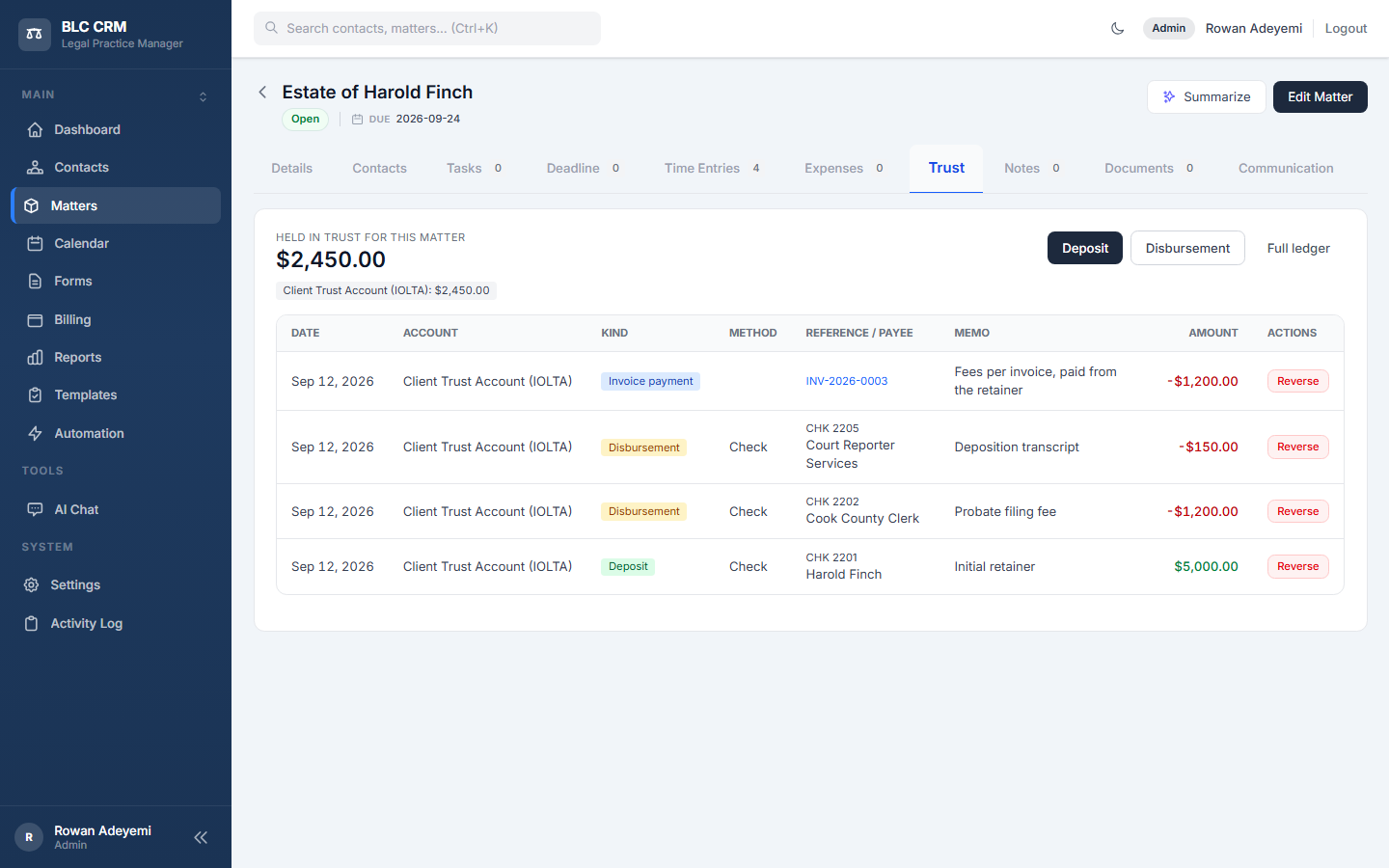
- Trust: The client funds held in trust for this matter - the balance per trust account, the matter's own ledger, and Deposit / Disbursement buttons for users with trust access.
- Timeline: A chronological log of everything that has happened on the case, trust postings included under their own "Trust" filter.
Calendar & Appointments
The Calendar area shows every appointment your firm has — internal meetings, client consultations, court dates — across Day, Week, Month, and List views. Color blocks distinguish appointment types at a glance.
Clicking + New appointment opens a modal where you set the title, type, owner, contact, matter, location (Phone, Office, Google Meet, Zoom), and time. Picking a Google Meet location auto-creates a Meet link on save. Clicking any date on the grid pre-fills the date field; dragging across multiple days pre-fills both ends.
Google Calendar two-way sync
Each user can connect their personal Google Calendar from Settings → Integrations → Calendars. Once connected, you choose which Google calendar to sync to/from and pick a sync direction (one-way: CRM → Google, or two-way: changes flow both directions). Two-way sync polls Google every minute and brings external events in as read-only "busy block" rows so the firm can see the host's full schedule without leaking event details.
When CRM creates an appointment with a Google Meet location, it also adds the contact as an attendee on the Google event with sendUpdates=all, so Google's own calendar invite (the standard ".ics" with an Add-to-Calendar button) lands in the contact's inbox alongside the CRM confirmation email.
Reminders & notifications
The Reminders sub-tab under Settings → Calendar lets you set up rules that automatically send an email or SMS to the contact, the host, or both, ahead of every appointment. Default rules: 24-hour-before email, 1-minute-before email, and 1-minute-before SMS. Rules can be firm-wide or scoped to a specific appointment type. The wording comes from the Templates module so you can customize per-firm tone.
When an appointment is booked, four notifications fire in parallel:
- CRM confirmation email to the contact, immediately. Subject "Confirmed: {appointment type} on {date} {time}", body lists time range, location, Meet link, host.
- Google Calendar invite to the contact (the standard .ics email Google itself sends).
- Google Meet link auto-generated when the location is a Google Meet location.
- Reminder rows scheduled in advance — one per active rule. The cron sweeps the queue every minute and sends each row when its time arrives.
The host also gets a Google-native heads-up: every event has explicit popup -10min + email -30min reminders so a desktop popup appears 10 minutes before and a Google reminder email lands 30 minutes before, independent of the CRM emails.
Settings → Calendar (sub-tabs)
- Firm defaults: working hours per day, break hours, slot granularity, default buffer-before/after, and the firm's pickable Locations list.
- Appointment types: name, color, default duration, active flag.
- Reminders: the rules that drive the email + SMS reminder dispatcher.
- Availability: per-user weekly windows (admins can edit any user's; attorneys edit their own). Drives slot computation on public booking forms.
- Holidays: federal + state holidays auto-compute by year. Admins can add or hide custom dates. The CRM blocks booking on a holiday and blocks adding a holiday to a date that already has appointments.
Forms
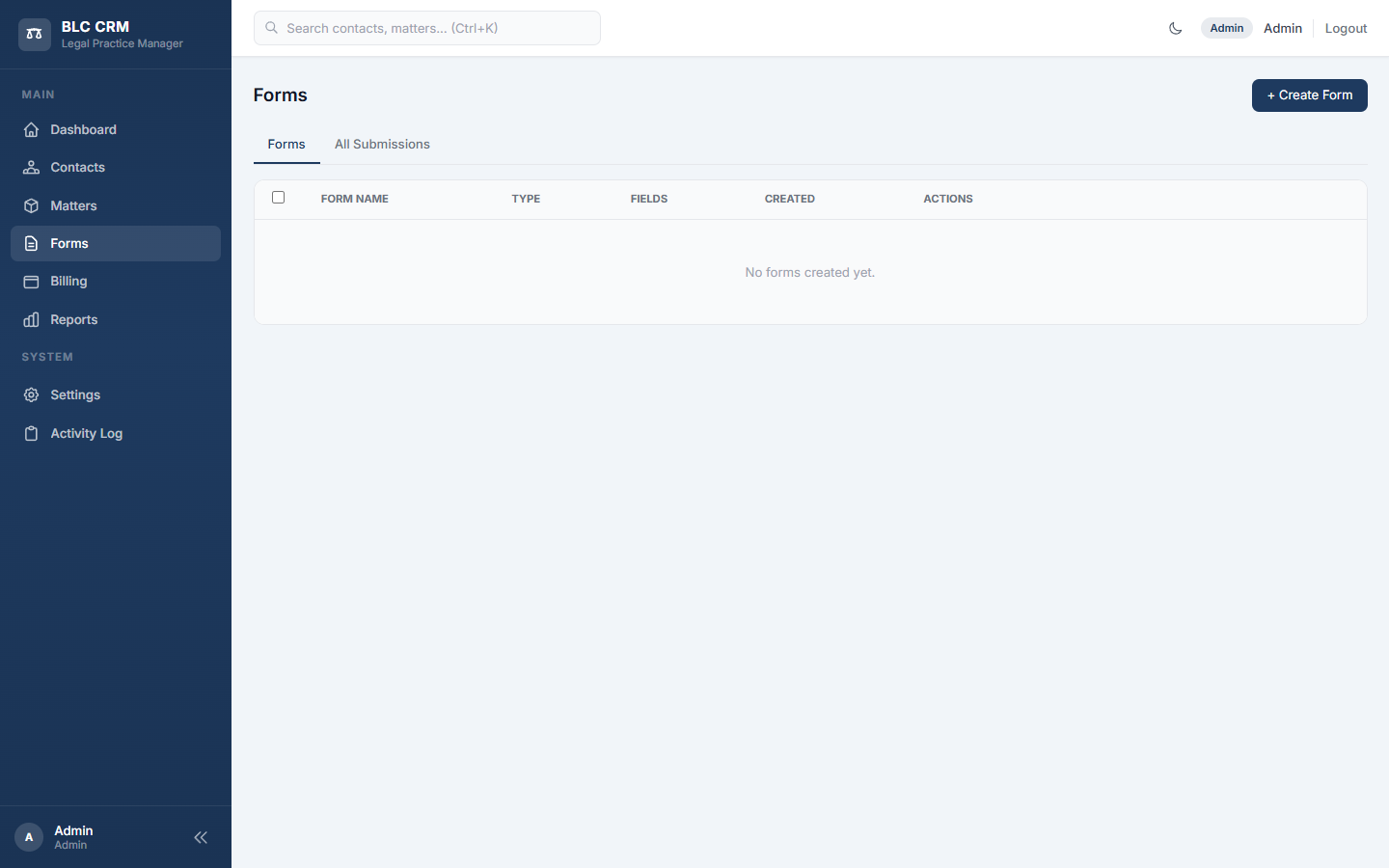
Forms are the intake questionnaires you send to prospective clients. Each form you build has a public link you can email or embed on your website. When someone fills it out, their answers come straight into BLC CRM.
The Forms tab lists every form you have built: name, type, how many fields it has, and when it was created. The All Submissions tab lists every response that has come in across every form, so you can triage new leads in one place. From the All Submissions view you can edit individual response values inline (the field keys are read-only — you're editing what was submitted, not the form's schema).
Clicking + Create Form starts a new form. You drag fields from the palette onto the canvas. Field widths are flexible — Full, 1/2, 1/3, 2/3, 1/4, 3/4 — so you can fit two name fields and an email on a single row. Conditional logic ("show this field only when X") is built in.
Appointment Picker (Calendly-style)
The "Appointment fields" group in the form builder gives you one drag tile: Appointment Picker. Drop it onto a form and configure four things: Assigned User (whose calendar the booking lands on), Appointment Type (sets each slot's duration), Location (picking a Google Meet location auto-creates a Meet link on submission), and a Helper Label.
Visitors see a Calendly-style calendar grid showing days the assigned user is available, pick a date, then a time slot, then submit. On submit the system creates the contact, the matter (if matter fields exist), and the appointment all at once — and fires the same confirmation + reminder pipeline as a manually-created appointment. The booking shows on the calendar as "Appointment Type - Visitor's name" (for example "Initial Consultation - Jane Doe"), the same way a staff-made booking reads.
Templates
Templates are the pre-written email and SMS messages your firm reuses — appointment confirmations, intake follow-ups, payment reminders. Build once, send many times.
The Templates list shows every template (name, type, last updated). Click one to open the editor. Email templates use a rich-text editor (Tiptap) with a full toolbar; SMS templates are a plain textarea so you can't accidentally send HTML to a phone.
The email-template toolbar gives you: bold, italic, underline, strikethrough; H1/H2/H3 headings; a font-size dropdown (10–48 px) plus reset; bulleted and numbered lists; alignment (left/center/right/justify); a color picker plus reset; insert/edit link; an HTML source-view toggle for hand-tuning; and clear-formatting. The same toolbar is also available on the form-builder Paragraph layout element.
The editor has three columns: a Standard merge tag panel on the left (open by default), the editor in the middle, and a Custom Fields merge tag panel on the right (collapsed). Click any merge tag and it inserts at your cursor in the editor AND copies to your clipboard. Tags follow the format {{ contact.first_name }}, {{ matter.title }}, {{ contact.custom.{your-slug} }}, and so on. Templates is visible to admins and attorneys.
Billing
The Billing area is where time and expenses turn into money. It has three tabs.
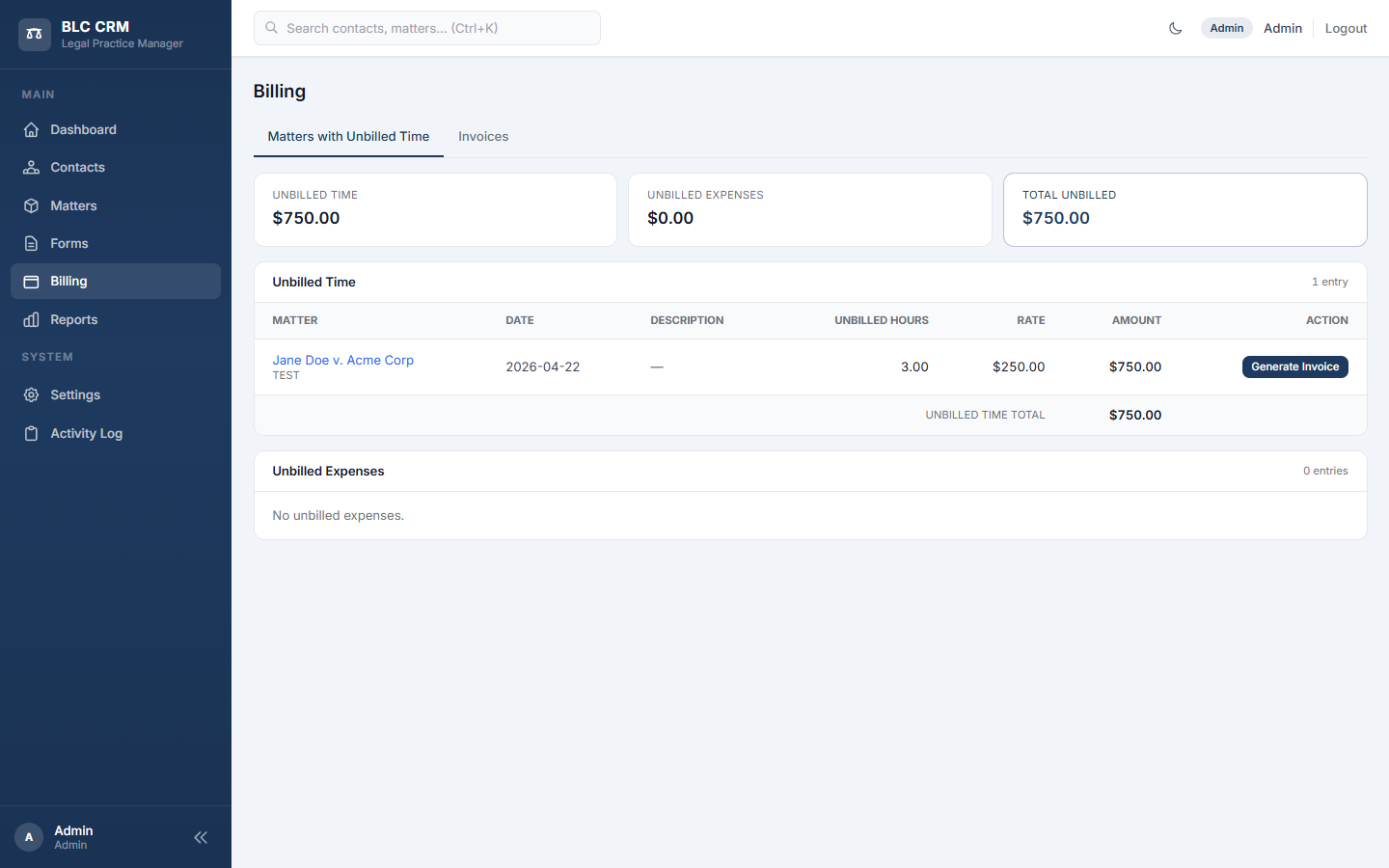
Matters with Unbilled Time is the default. Across the top you see three totals: unbilled time, unbilled expenses, and their combined total. Below that, every time entry and expense that has not yet been billed is listed by matter. Each matter row has a Generate Invoice button - clicking it opens a draft invoice prefilled with those entries.
Invoices is the other tab. It lists every invoice ever issued, with its number, matter, amount, status (Draft, Issued, Paid, Void), and controls to view or record a payment. Voiding an issued invoice asks for a reason; the invoice page then reads "Voided date by who: reason" under its dates and the PDF prints the reason under its VOID stamp.
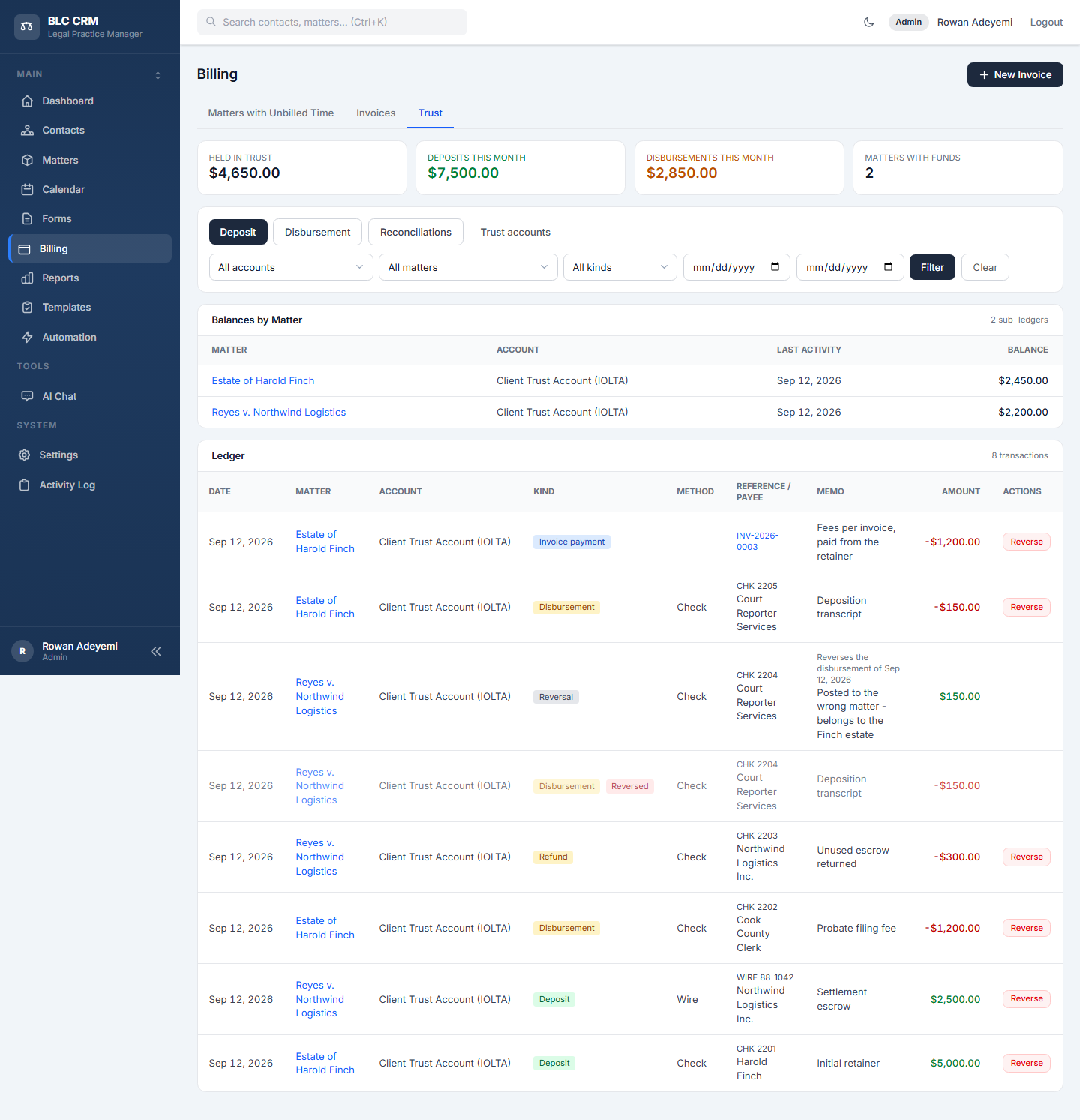
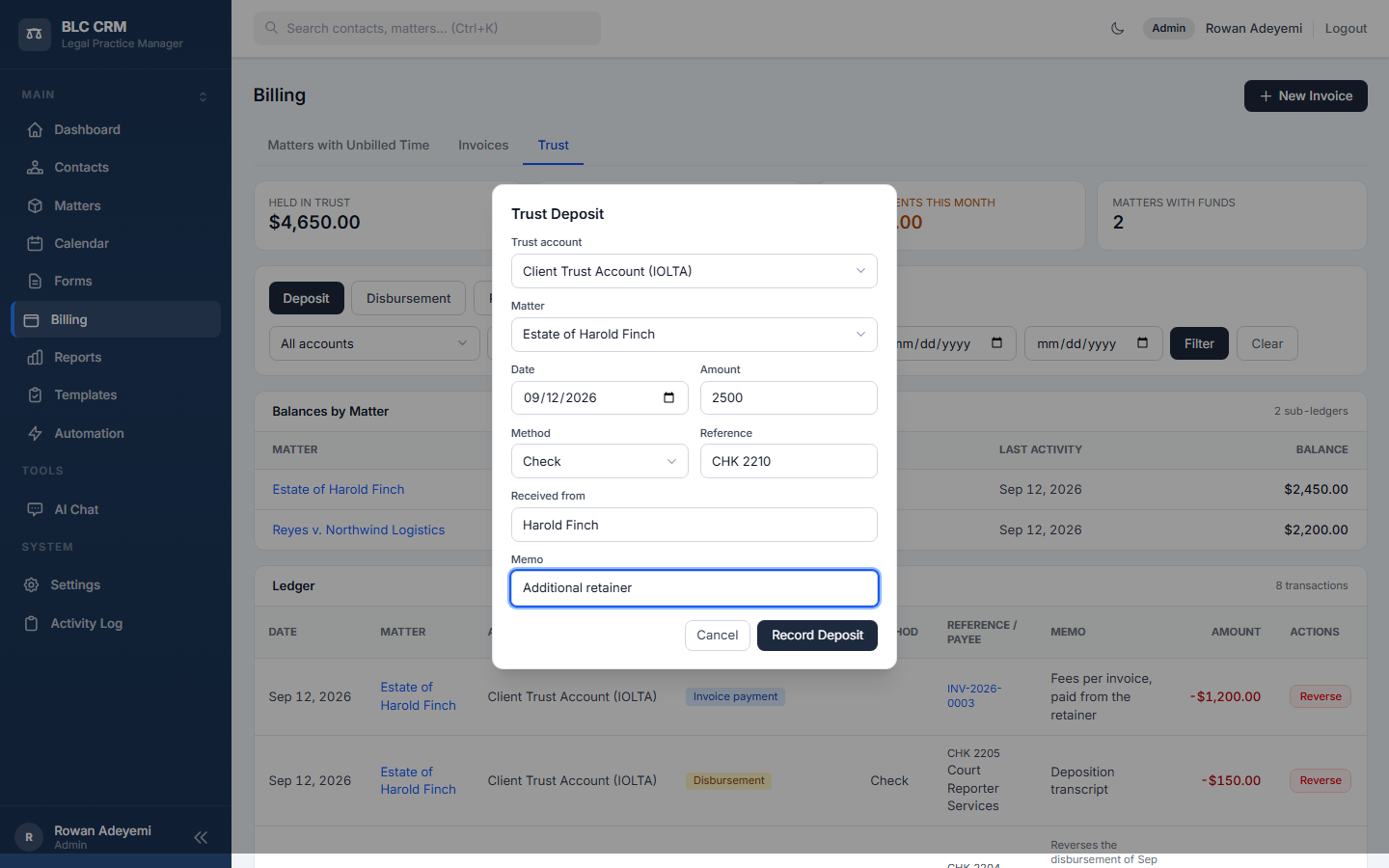
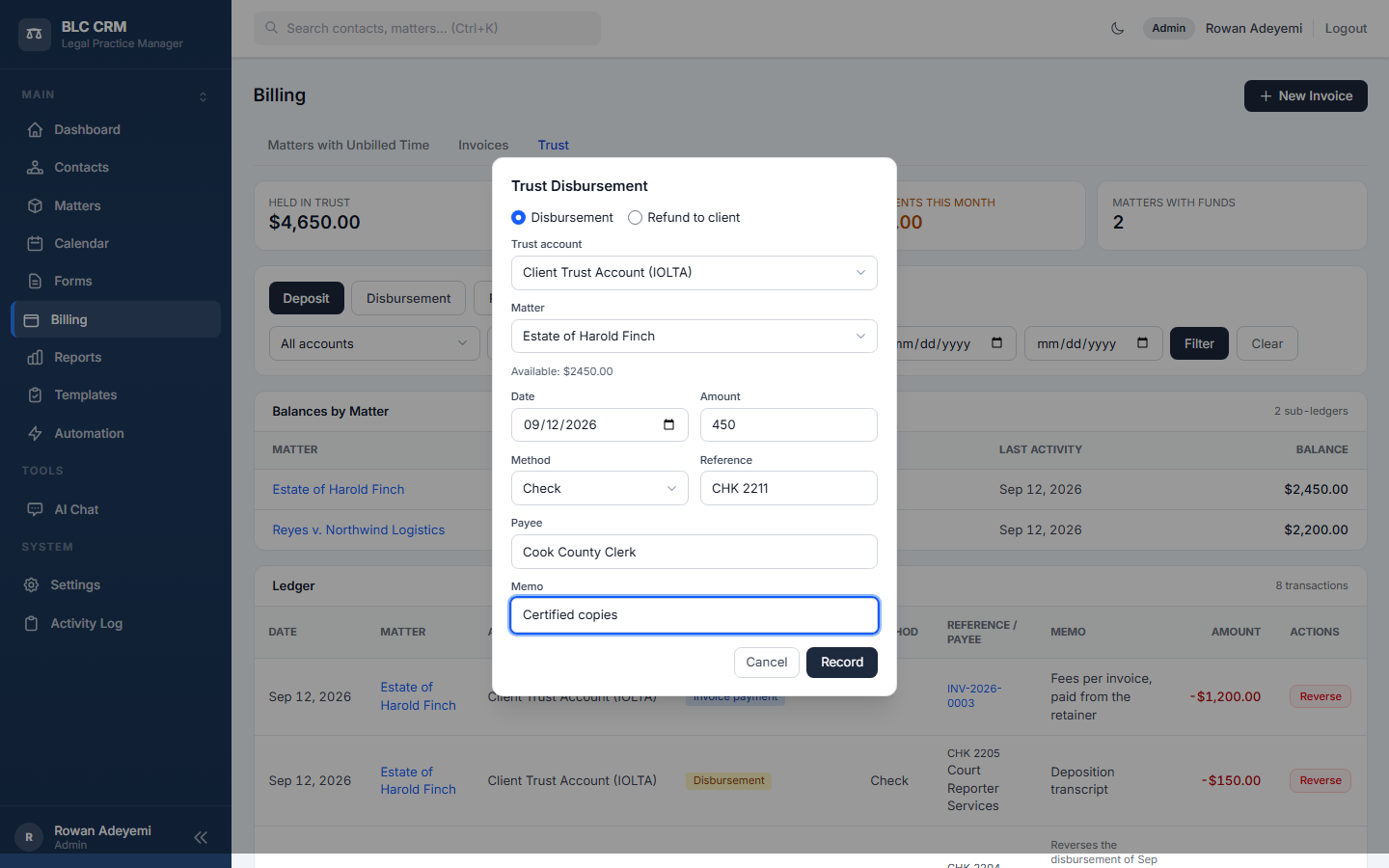
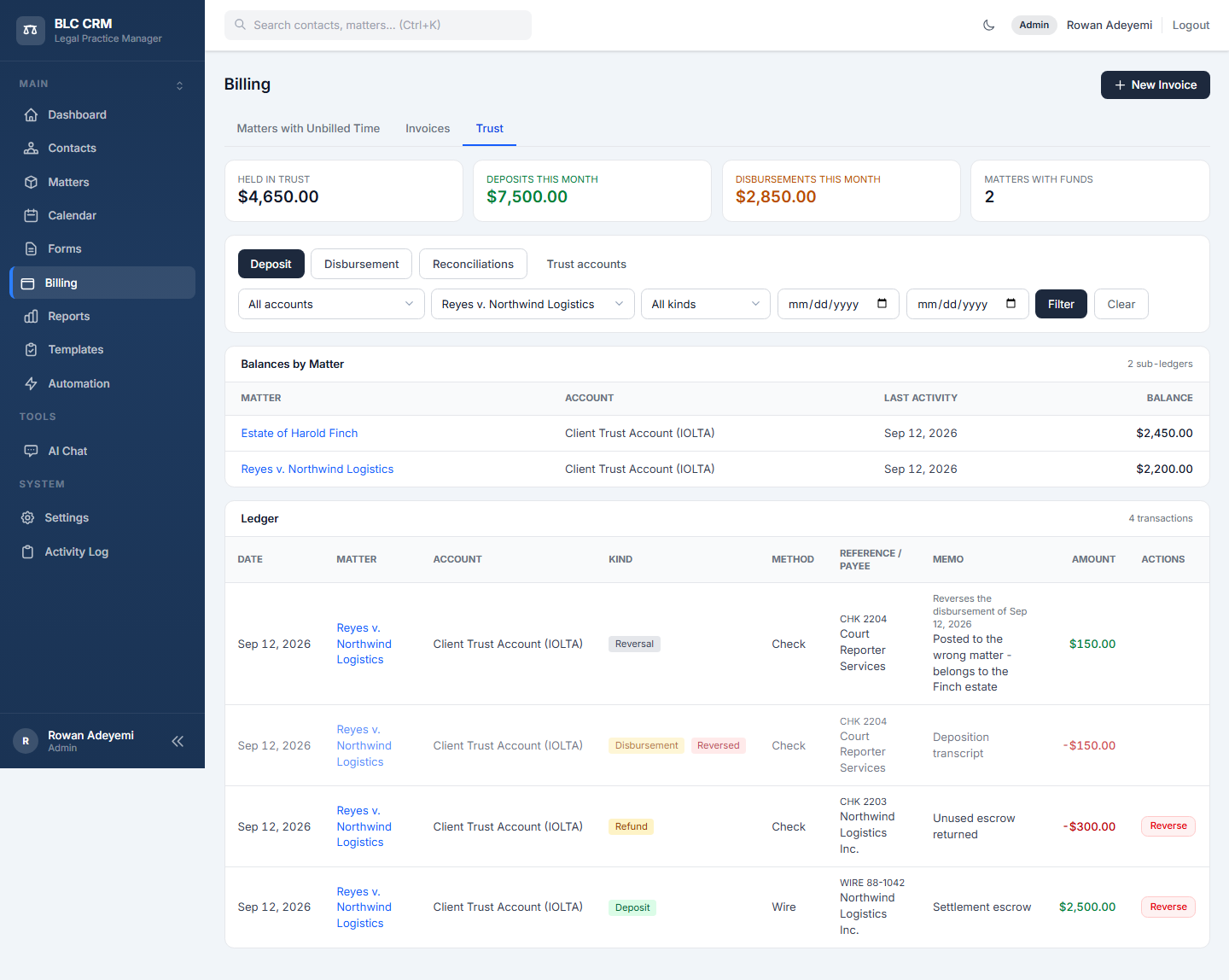
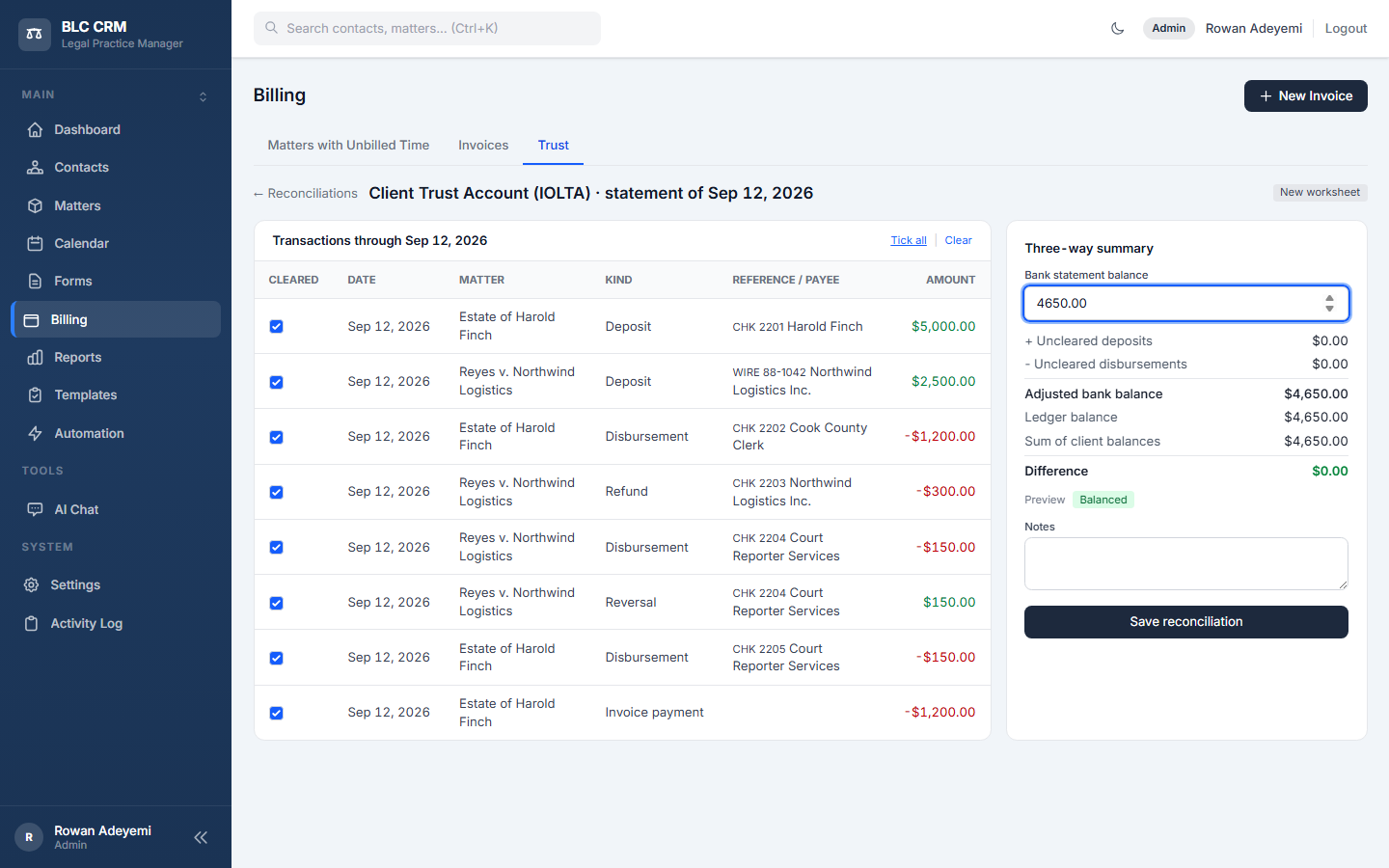
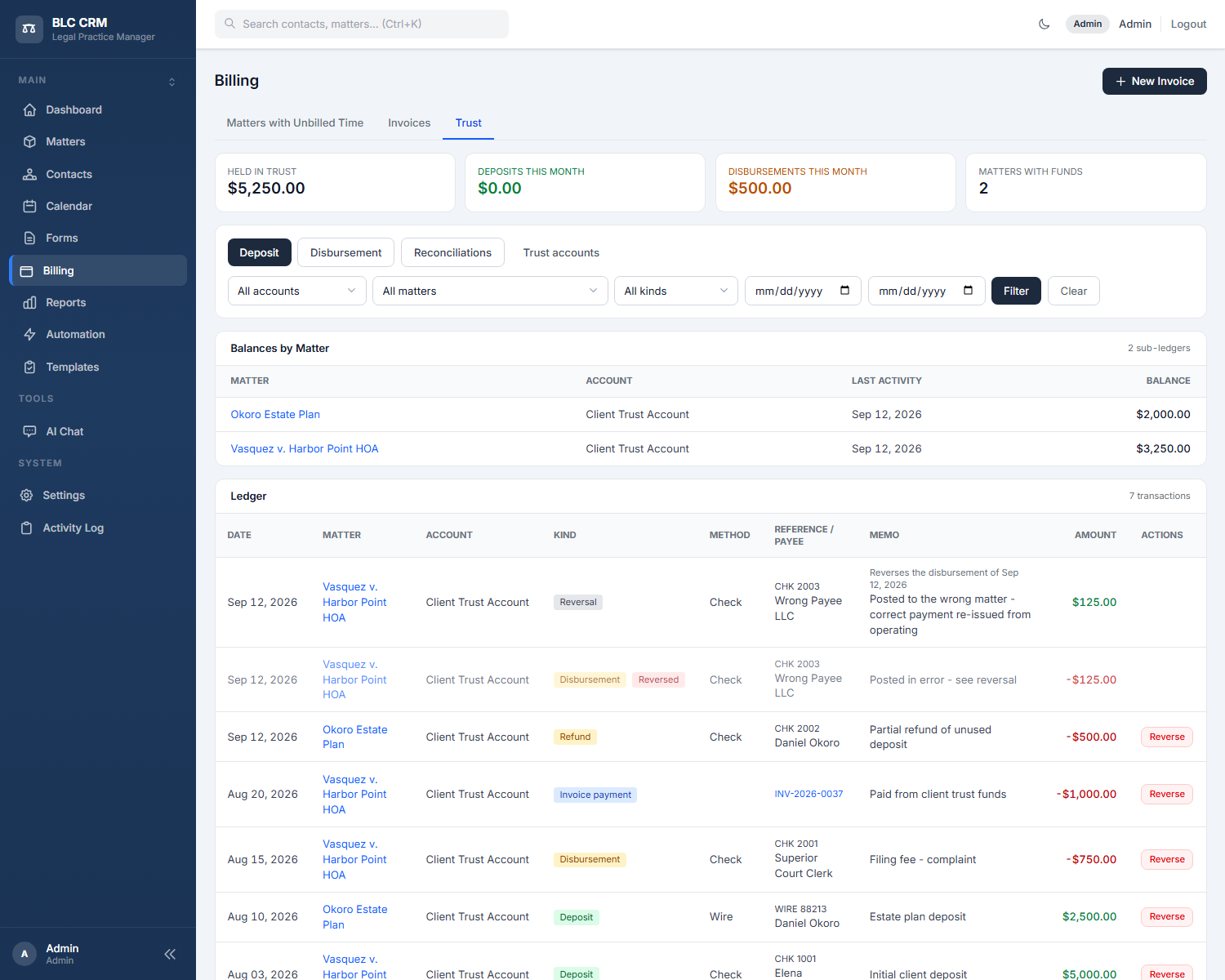
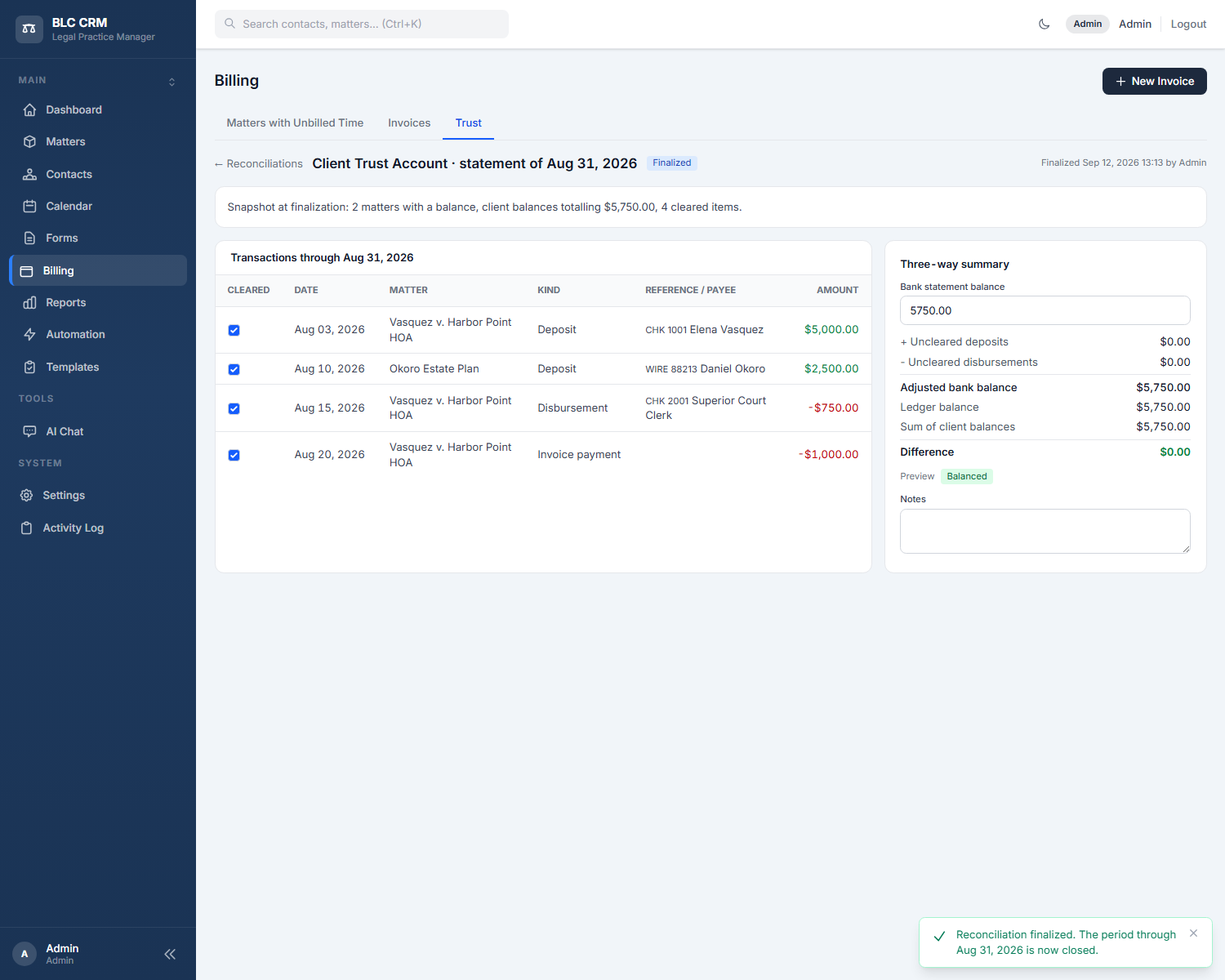
Trust is the third tab: the client funds the firm holds in trust. Every matter has its own sub-ledger, so one client's money never covers another's. Record a Deposit when funds arrive, a Disbursement when you pay something on the client's behalf (or a Refund back to the client); each outgoing entry is checked against that matter's available balance and refused if it would overdraw it. Nothing on the ledger is ever edited or deleted - an administrator corrects a mistake with a Reverse, which adds a cancelling entry with a reason and marks the original "Reversed". The tab shows what is held in trust, this month's deposits and disbursements, balances by matter, and the full ledger with filters. Reconciliations (linked from the tab) is the monthly three-way check of one trust account against its bank statement: tick what appears on the statement, type the statement balance, and the worksheet shows whether the bank, the ledger and the sum of the client balances agree; an administrator finalizes a balanced statement, which closes that period. Trust accounts themselves (name, bank, default) live under Settings.
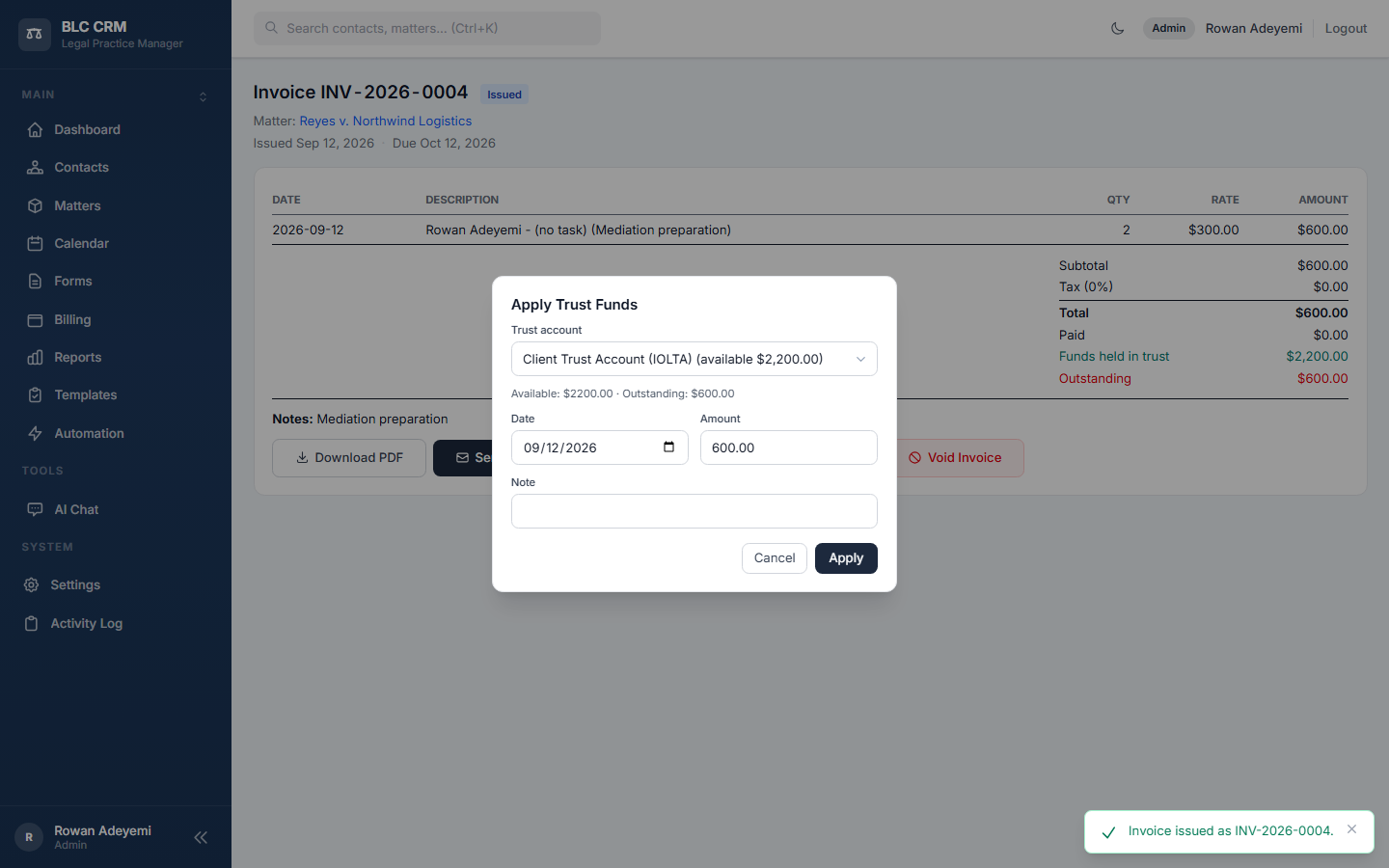
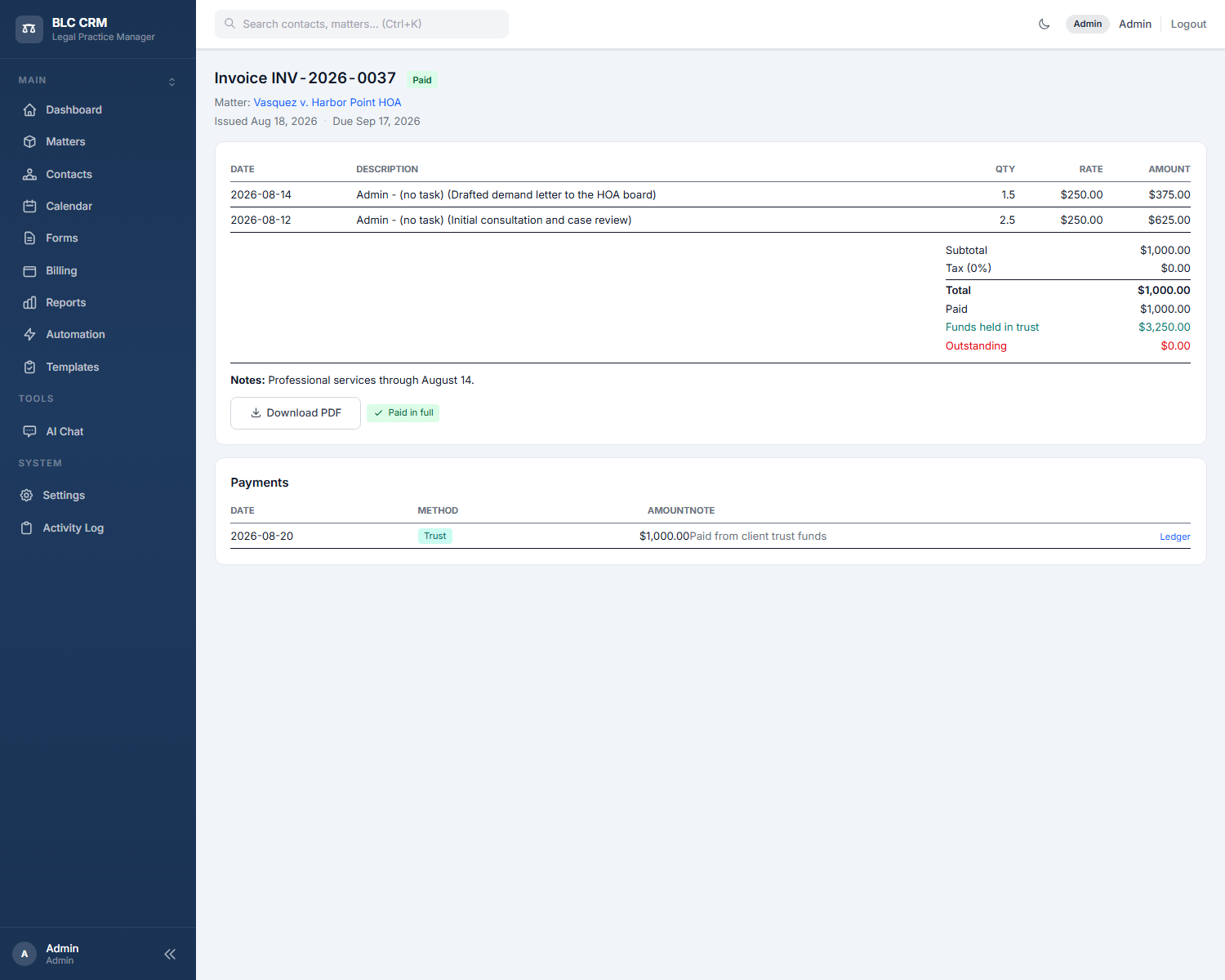
On an issued invoice whose matter holds trust funds, the totals show "Funds held in trust" and an Apply Trust Funds button pays the invoice from the client's money (prefilled with the smaller of what is available and what is outstanding); the payment shows a Trust badge, the invoice's PDF prints the funds still held, and voiding such an invoice returns the money to the ledger automatically.
A New Invoice button sits in the header of all three tabs: pick a matter and it opens that matter's invoice draft with the "Bill To" client already filled in. The landing also has two cards. Quick Actions lets you pick a matter and jump straight to Start Timer, Log Time, Add Expense, Create Invoice, Record Payment, or Trust Deposit. Recent Matters lists your six newest matters with their client, one click away.
Trust accounting, step by step
The timer is the quickest way to capture billable time. Pick a matter and an optional "Describe the work being performed" note, then Start - a small pill appears fixed at the bottom-right of the screen showing the live elapsed time; it stays visible and keeps ticking as you move around the app. Use Pause when you step away (the clock freezes and the pill shows "Paused"; paused time is never billed) and Resume to carry on. When you click Stop & Save, a small window shows the time and lets you edit the note before the entry is logged as billable time on that matter, and you land on the matter's Time Entries tab where it now appears (Discard throws it away). Only one timer runs at a time. Nothing is invoiced by the timer itself - the entry waits under Billing's "Matters with Unbilled Time" until you click Generate Invoice.
Sample data to look at
Both installs keep a small, realistic data set that was built through these screens as a user (forms, pickers, modals and the workflow builder, nothing seeded by code) and is left in place for you to open. It ties the modules together:
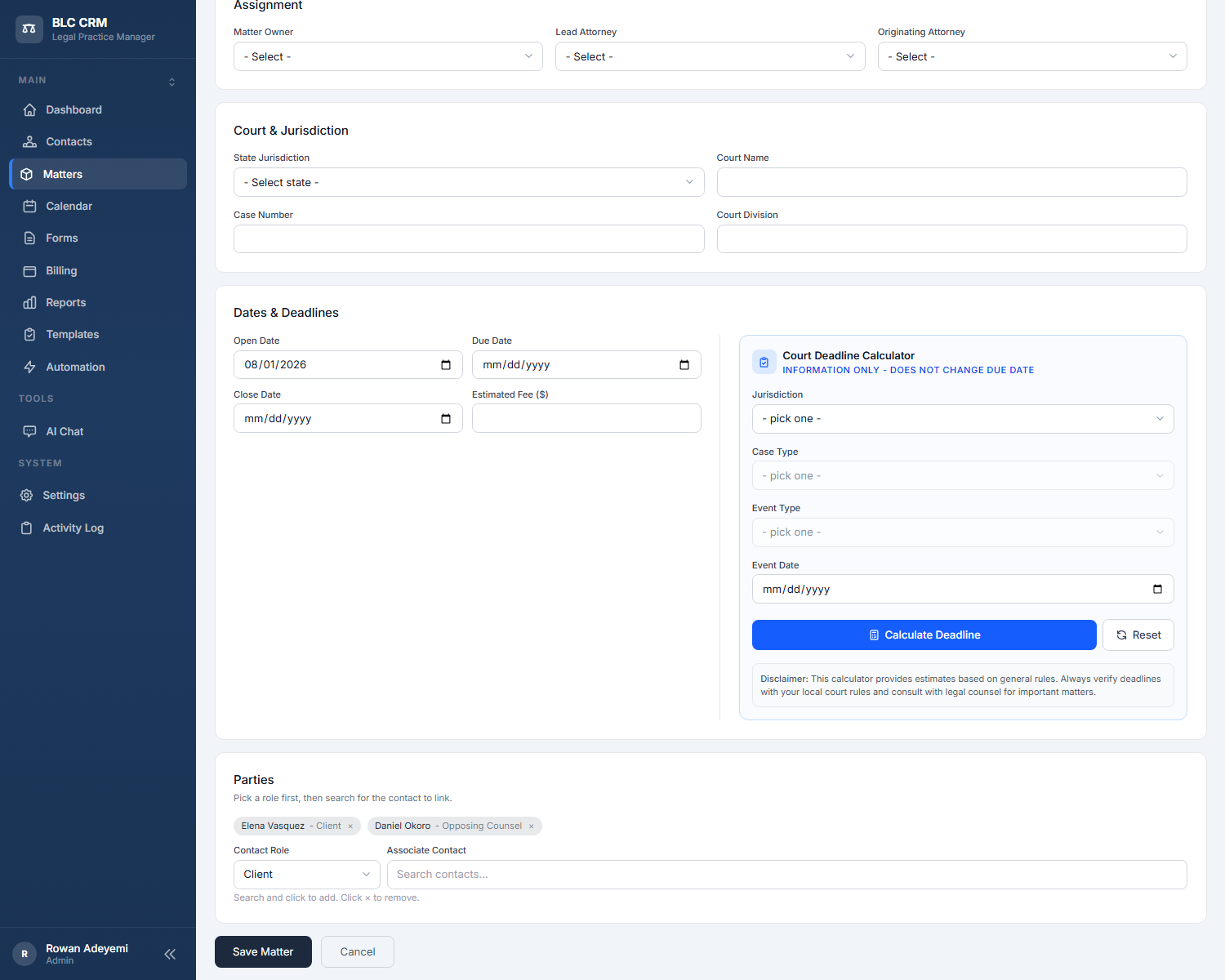
- Contacts and matters: Elena Vasquez, Daniel Okoro, Marcus Webb and Nadia Fischer; the matter Vasquez v. Harbor Point HOA with Elena and Daniel linked by role through the matter form's picker, and Okoro Estate Plan, started from Daniel's contact page with "+ New Matter". The matter's Contacts tab shows the people and roles; each contact page lists the matters.
- Billing: two time entries on the Vasquez matter (2.5 h and 1.5 h at 250) turned into a 1,000.00 invoice from Billing → New Invoice, issued, and paid in full from trust.
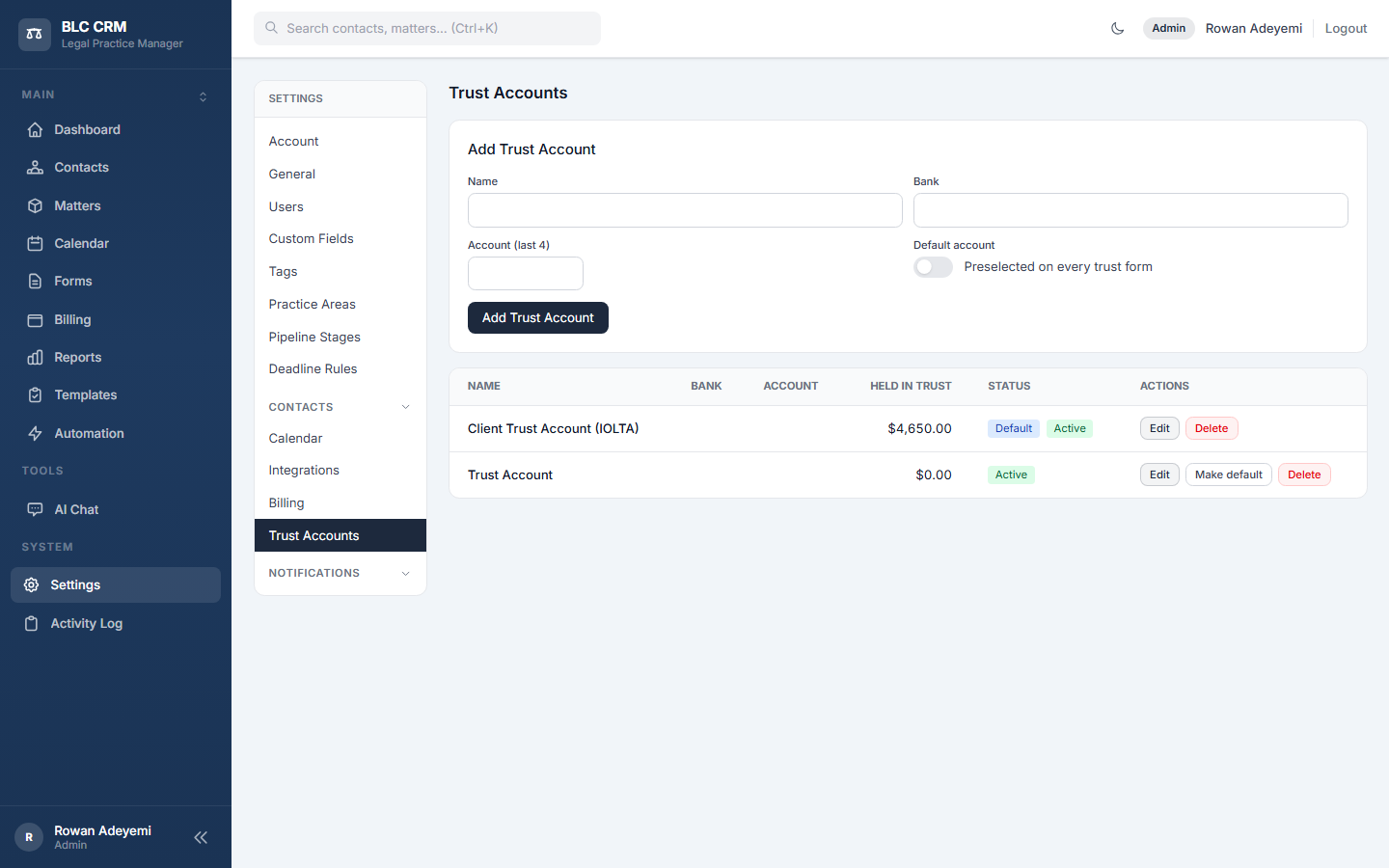
- Trust: the account Client Trust Account; deposits of 5,000.00 (check) and 2,500.00 (wire) in August; a 750.00 filing fee to the Superior Court Clerk; the invoice payment; a finalized three-way reconciliation for the statement of 31 August (5,750.00, four items cleared, Balanced, so August is a closed period on that account); then a 500.00 refund and a 125.00 disbursement posted to the wrong payee and reversed with a reason. Billing → Trust reads Vasquez 3,250.00, Okoro 2,000.00, 5,250.00 held in trust; Reports and the Invoices KPI show the same figure.
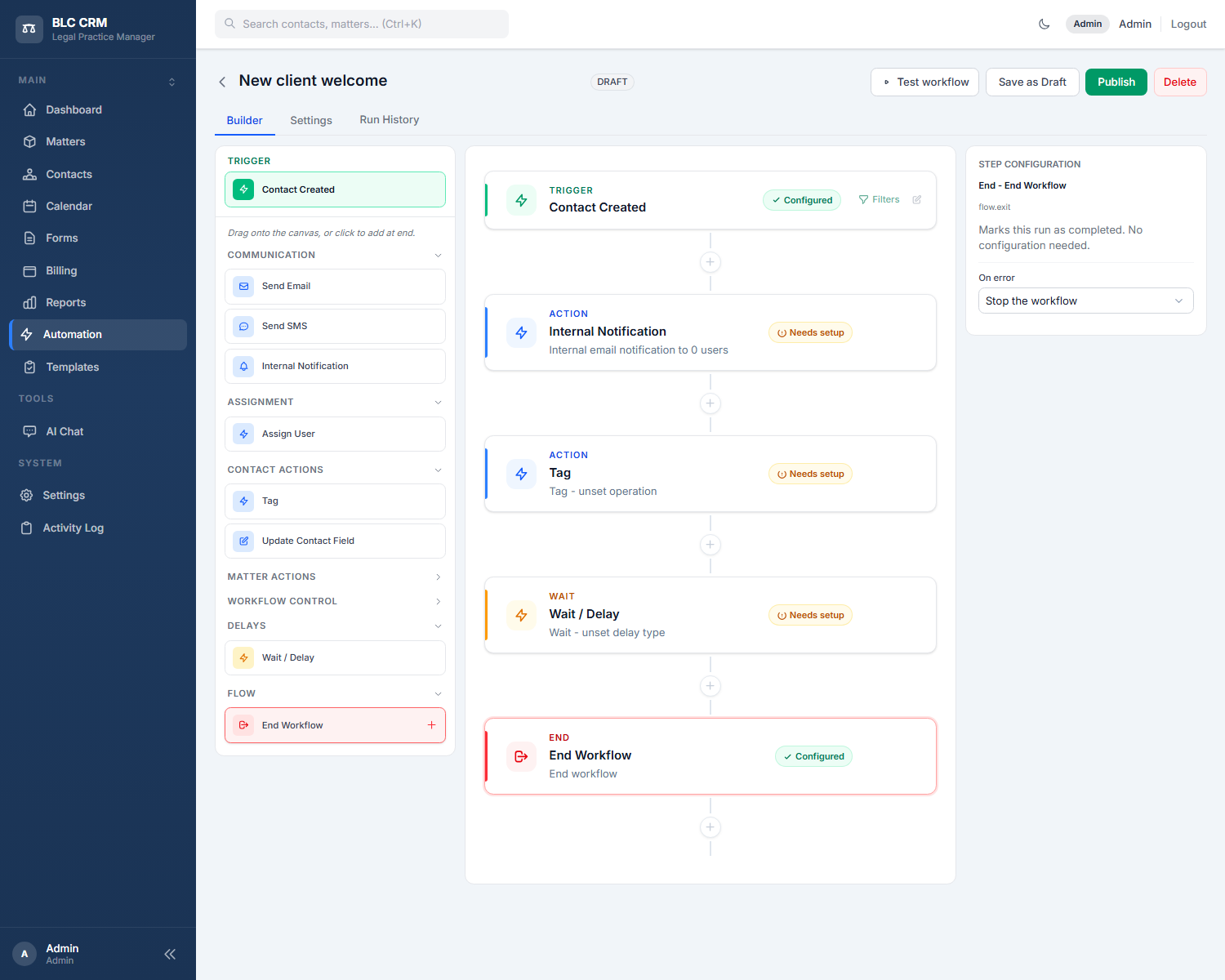
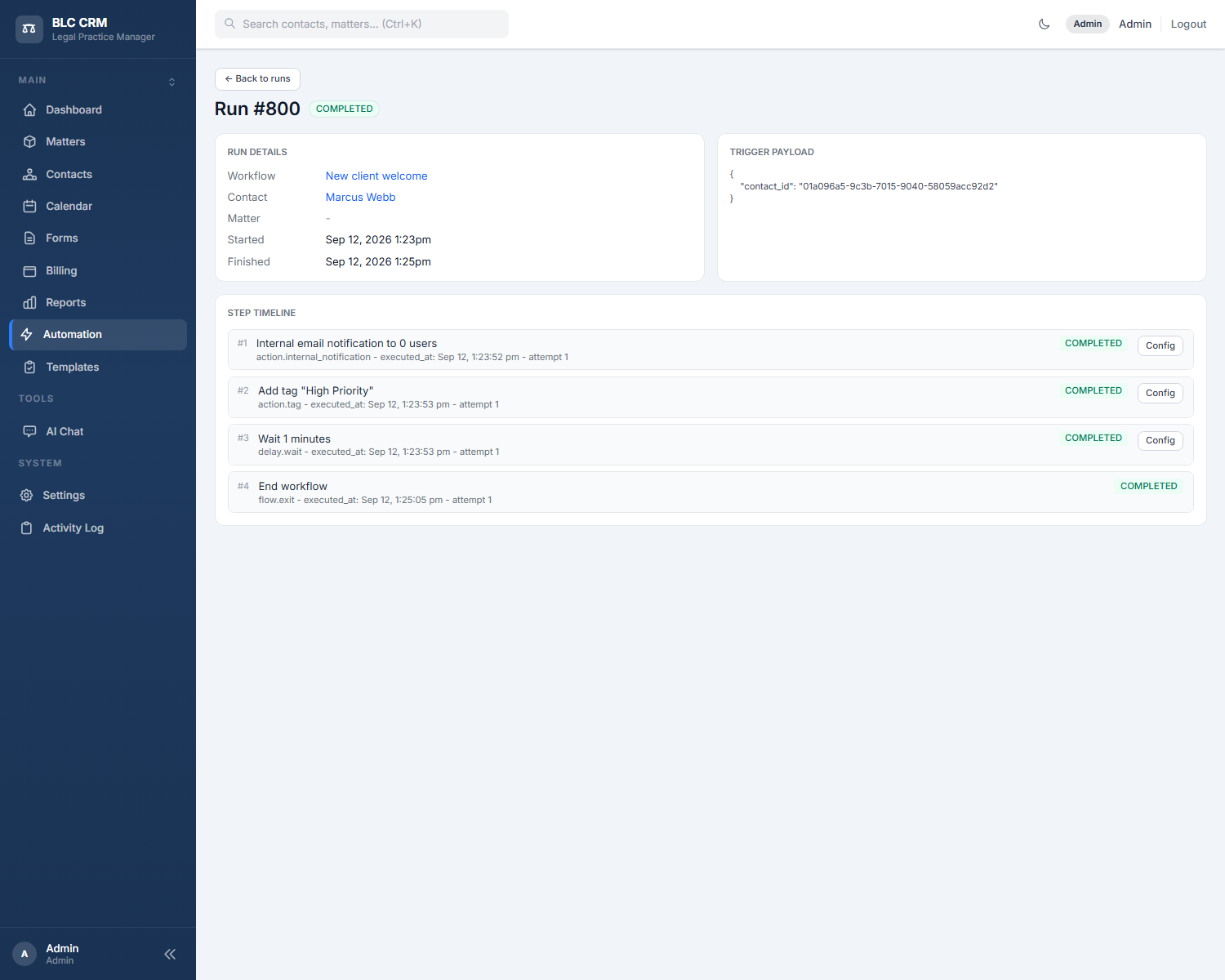
- Automation: the workflow New client welcome (Contact Created → Internal Notification, dragged in from the palette → Tag "High Priority" → Wait 1 minute → End), published and active. Its Run History has a failed run kept on purpose (its detail page shows the exit reason: the notification email could not be delivered on that install) and completed runs, after the notification step was set to "Continue past failure", where the scheduler resumed the Wait step and the tag landed on the new contact.
Reports
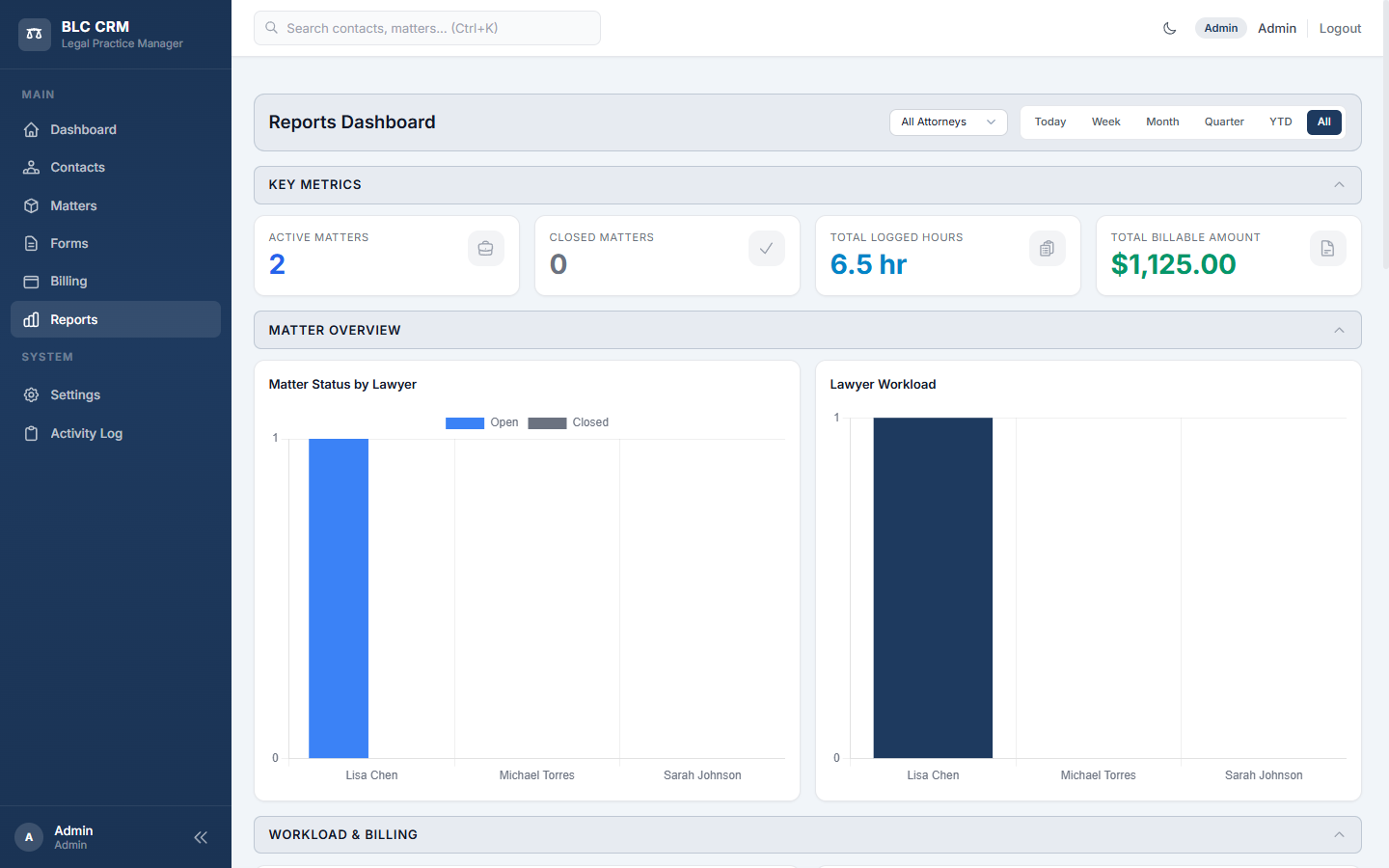
The Reports dashboard answers "how is the firm doing." The time range in the top right (Today, Week, Month, Last month, Quarter, YTD, All) narrows every chart and number below it. The attorney dropdown next to it lets you focus on one lawyer at a time.
You get four headline metrics: active matters, closed matters, total logged hours, and total billable amount. Below those are charts: Matter Status by Lawyer, Lawyer Workload, and further down, Workload and Billing breakdowns - the Billing row now ends with Held in Trust, the client funds the firm currently holds (it follows the attorney filter like the invoice figures). Saved reports can also measure Held in trust, Trust deposits and Trust disbursements, grouped by matter or trust account. Partners typically look at this page once a week to see where the hours are going.
Time is counted by the day it was logged, so "Month" is the work done this month whatever month the matter was opened in; matters and invoices are counted by when they were created. The attorney filter shows the time credited to that attorney: what they logged themselves, plus time staff logged on the matters they lead. The headline figures and the per-attorney table use the same rule, so they always agree.
Reports is visible to admins and attorneys only. Staff accounts do not see it.
Settings
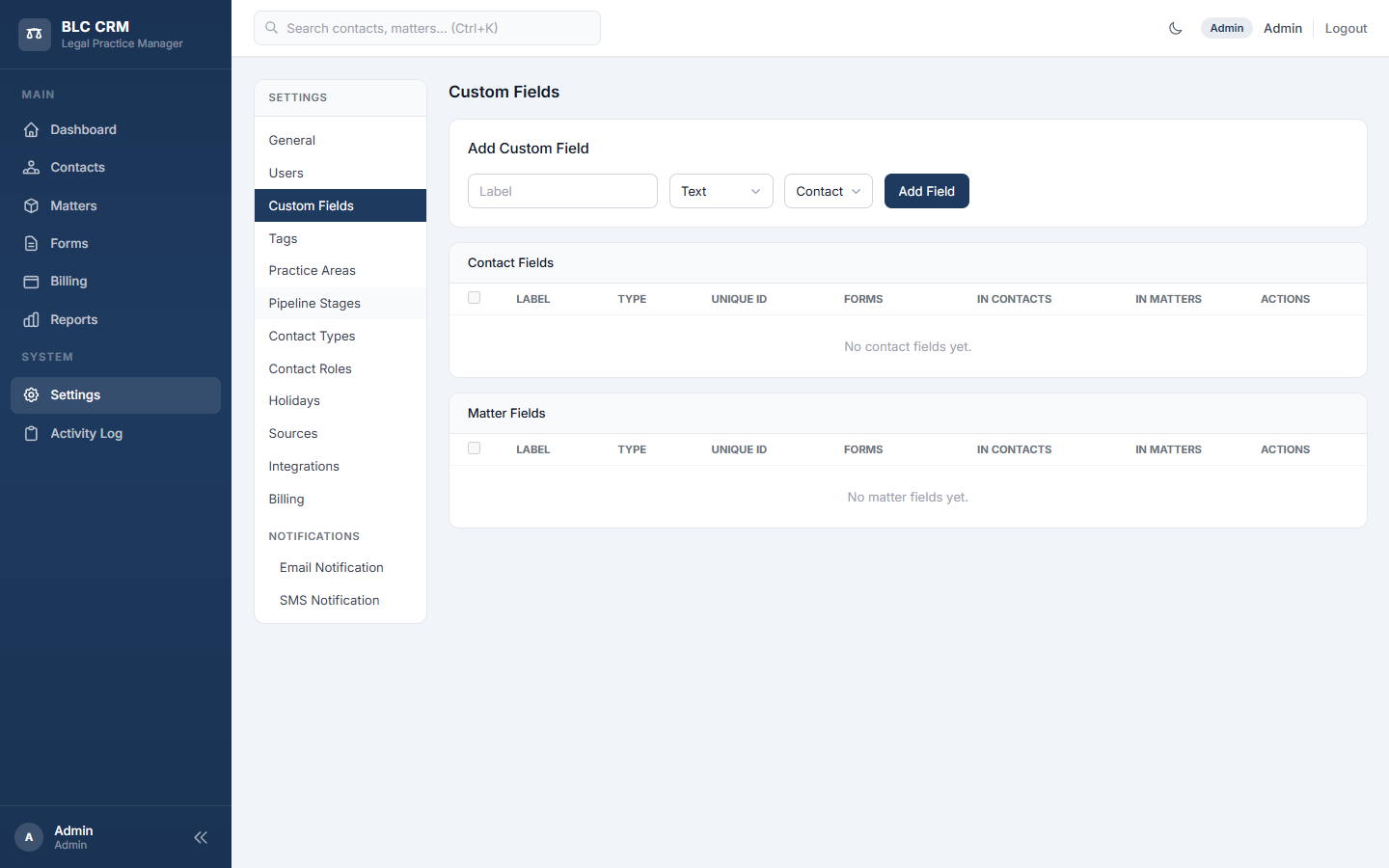
Everything that shapes how your firm uses the CRM lives here. The left-hand menu groups settings into logical sections. You pick one and edit on the right.
- General: Firm name, time zone, and other firm-wide defaults.
- Users: Who can log in, and what role they have (admin, attorney, staff). Each user also has a Trust accounting switch: on, they may record trust deposits and disbursements, apply trust funds to invoices and prepare reconciliations; off, they can only look. Administrators always may, and only administrators reverse entries or finalize a reconciliation.
- Trust Accounts: The firm's trust (IOLTA) bank accounts - name, bank, last four digits, which is the default. An account with transactions is deactivated, never deleted.
- Custom Fields: Extra fields you want on contacts or matters beyond the built-in ones.
- Tags: The colored labels you attach to contacts and matters.
- Practice Areas: The categories you organize matters by (Immigration, Corporate, Family Law, and so on).
- Pipeline Stages: The stages a matter moves through from intake to close.
- Contact Types and Contact Roles: The built-in categories for people (Client, Lead, Witness, and their roles on a matter).
- Holidays: Firm holidays so deadlines skip non-working days.
- Sources: Where leads come from. Each source can have its own webhook endpoint.
- Calendar (sub-tabs): firm working hours and locations, appointment types, reminder rules, per-user availability, firm holidays. See the Calendar section above.
- Integrations (sub-tabs): one unified hub with category tabs for Calendars (Google Calendar; Outlook coming soon), Meetings (Google Meet auto-link; Zoom coming soon), Email (Mailgun for sending and receiving inbound replies; SendGrid coming soon), Messaging (Twilio for SMS), Documents (the BLC Document Analyzer: an admin presses Connect to Document Analyzer, signs in to the analyzer and approves; the card then offers Test Connection, Sync, which sends the firm's matter list to the analyzer, and Disconnect; documents sent from the analyzer land in the matter's Documents tab in a folder named Document Analyzer), and Other. When Mailgun is on a sandbox subdomain (
sandbox*.mailgun.org), a yellow banner warns that emails only deliver to authorized recipients. - Billing: Your default hourly rates, invoice numbering, and payment terms. Invoice numbers are your firm's own sequence: the first invoice of a year is 0001 and the numbering is gap-free within the firm.
- Email Notification and SMS Notification: What automatic messages the CRM sends to clients and staff, and when.
- System → Error Log: an in-app viewer for recent entries in the application log file. Filter by level, set the row limit, and expand any entry to see its full stack trace. Useful for debugging "did the email actually send?" or "why did the appointment fail to push to Google?" without opening a terminal.
Settings is restricted to admins and attorneys.
Activity Log
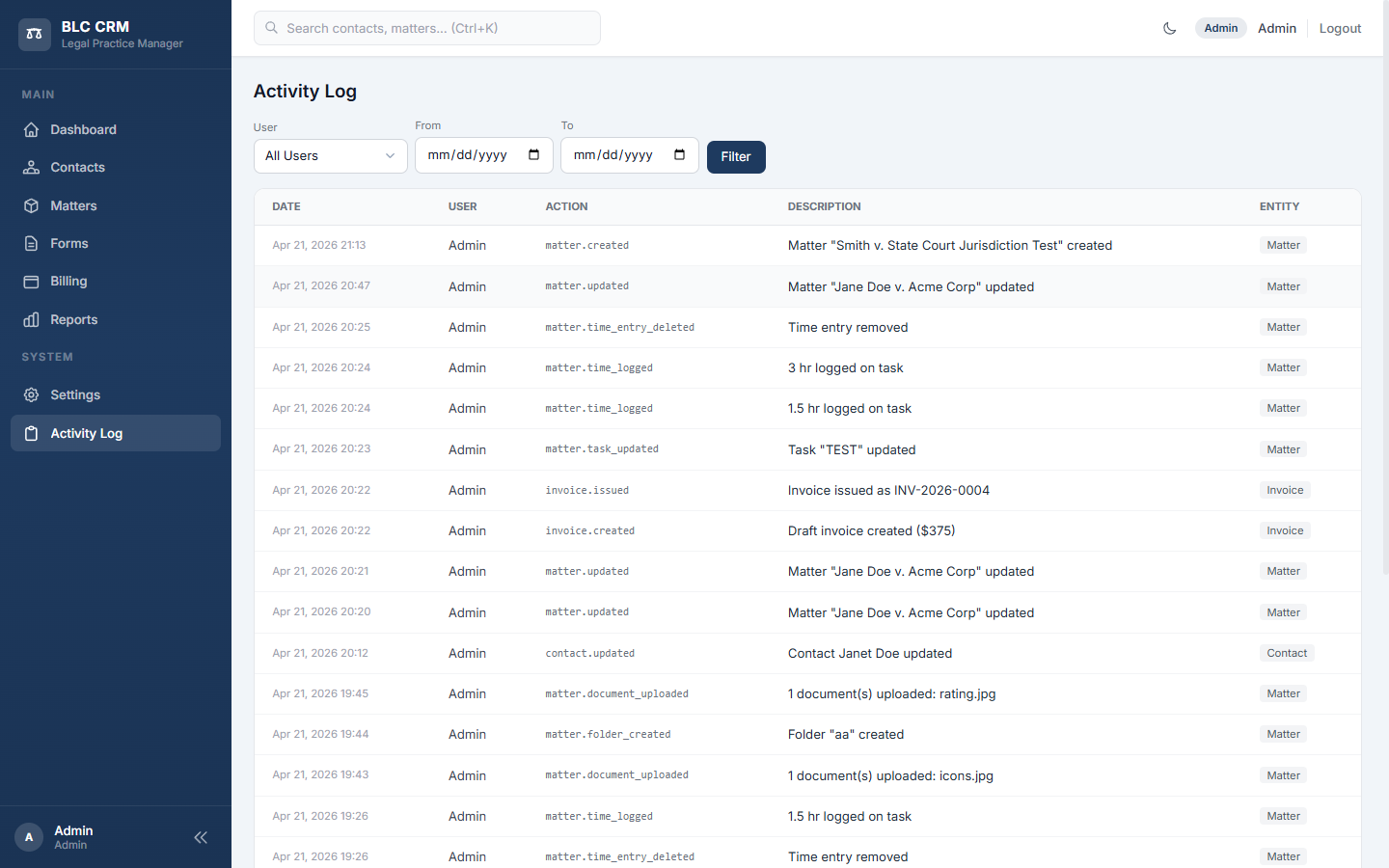
The Activity Log is the permanent record of who did what, and when. Every create, update, delete, upload, time entry, and invoice action writes a row here.
You filter by user or date range at the top, then scan the table. Each row shows the date, the person, the action code (like matter.updated or invoice.issued), a plain-English description, and the type of thing it affected.
This area is for admins only. Use it to answer questions like "who changed this matter last week" or "when did that invoice get issued."
Developer accounts also see a Notification Log under System: every appointment reminder the system scheduled, sent or failed to send, with the appointment, the recipient, the channel, the status and the error when there was one, filterable by status and channel.
Quick reference
| If you want to… | Go to |
|---|---|
| See what happened today across the firm | Dashboard |
| Find a person's contact info | Contacts |
| Open a case and log time on it | Matters → open the matter → Tasks or Timeline |
| Send an intake form to a prospect | Forms → pick a form → copy its public link |
| Time a task live and log it as billable | Billing → Quick Actions → pick a matter → Start Timer (Stop logs it) |
| Turn unbilled time into an invoice | Billing → Matters with Unbilled Time → Generate Invoice |
| Record a client's retainer into trust | Billing → Trust → Deposit (or Quick Actions → Trust Deposit) |
| Pay an invoice from the client's trust funds | Open the issued invoice → Apply Trust Funds |
| Reconcile the trust account against the bank statement | Billing → Trust → Reconciliations → pick the account and statement date |
| Let a staff member record trust deposits | Settings → Users → edit the user → Trust accounting |
| Check how many hours each lawyer logged | Reports |
| Add a new user or change someone's role | Settings → Users |
| See who edited something last week | Activity Log |
Common questions
Do I have to use Matters for every case, or can I just use Contacts?
Use Matters for anything you bill time on or need to track as work. Contacts alone are fine for a Rolodex of names, but time entries, documents, tasks, invoices, and case communication all attach to a matter.
What is the difference between a Lead and a Client in Contact Types?
A Lead is someone who reached out but has not signed. A Client is someone you have formally engaged. Moving someone from Lead to Client is a simple type change on their contact record. You typically change it when you open their first matter.
Where does a client's retainer go, and why can't I edit a trust entry?
Into the firm's trust account, on the client's own matter: Billing → Trust → Deposit (or the Trust Deposit quick action). Each matter keeps its own sub-ledger, so one client's money never pays for another's, and every disbursement is checked against that matter's available balance. Nothing on the trust ledger is ever edited or deleted; an administrator corrects a mistake with Reverse, which adds a cancelling entry with a reason and marks the original "Reversed". To pay an invoice from those funds, open the issued invoice and click Apply Trust Funds. The monthly bank reconciliation lives under Billing → Trust → Reconciliations.
Who can see Reports and Settings?
Reports is visible to admins and attorneys. Settings is also restricted to admins and attorneys. Staff accounts do not see either link in the sidebar.
Where do text messages and emails from clients show up?
They show up in two places: the Communication tab on the matter they are about, and the messages view on the contact who sent or received them. Both show the same thread from different angles.
How do I turn off an automatic notification the CRM is sending?
Go to Settings, then Email Notification or SMS Notification. Each type of notification has its own toggle.
Can I undo something I deleted?
Most deletes are permanent, so before you delete a matter, contact, or invoice, double-check. For time entries and notes you can always add a new one to correct a mistake. Shared Settings lists (tags, practice areas, pipeline stages, contact types and roles, sources, appointment types) are protected: if one is still in use, the CRM refuses to delete it and tells you how many records depend on it, so reassign those first.